Loading page…
How to use Xtend
Everything a merchandiser or marketer needs, from the first sign-in to the end of the day.
Get started
Your admin or supervisor creates your account and gives you a password.
- 1Get the Xtend app for your phone from the download page, or open Xtend in Chrome on your phone.
- 2Sign in with the email or phone number your admin registered, and the password you were given.
- 3The first time, Xtend asks you to choose your own password. Pick something only you know.
Using Chrome instead of the app? Tap the menu, then “Install app” or “Add to Home screen”, so Xtend opens like an app.
Before your first clock-in
Xtend needs three things switched on before you can clock in. You only do this once per phone.
- 1Location: when asked, tap Allow (choose Allow all the time or Always if your phone offers it). In your phone’s settings, set location to High accuracy.
- 2Camera: allow it when asked. Clocking in and out takes a selfie with the camera inside Xtend.
- 3Notifications: tap Turn on notifications on the home screen. You cannot clock in until they are on.
Your profile photo
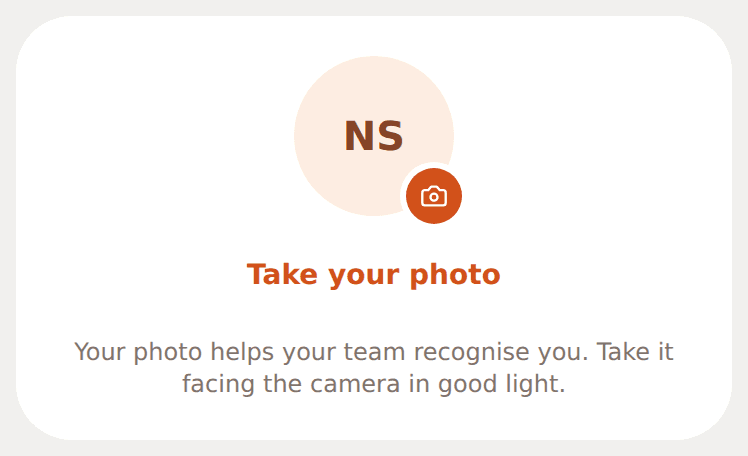
New to Xtend? The welcome steps ask for your photo first.
- 1The profile menu closes when you tap outside it or press Escape. Go to You and tap Take your photo (or the camera on your picture).
- 2Face the camera in good light and take the photo. Tap it again any time to retake it.
Clock in
Do this when you arrive at your store, once a day.
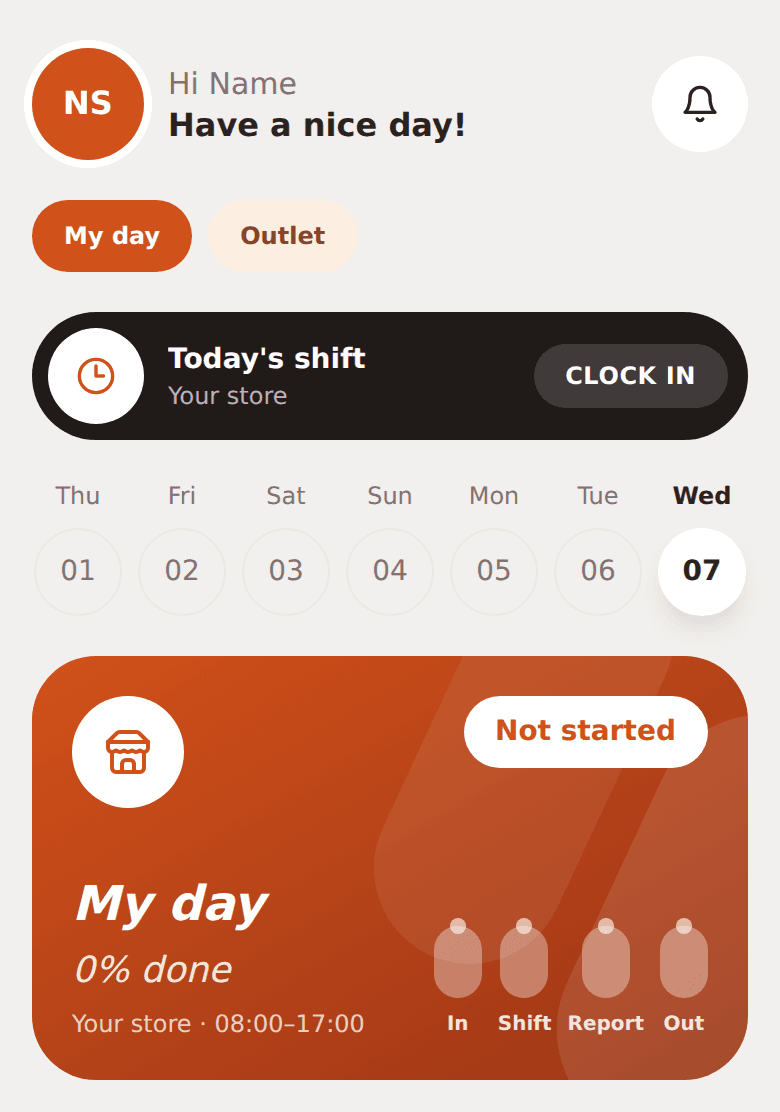
- 1Open Xtend while you are inside your store. If Home cannot load, check your connection and tap Try again.
- 2Below your shift status, tap Clock in with selfie and take a clear photo of your face.
- 3Wait while Xtend checks your location and the photo. When it is done, the home screen shows Clocked in.

Store visits (marketers)
Marketers who move between stores check in at each one.
- 1Clock in at the start of your day as above.
- 2At each store, tap Check in here. If Xtend does not find the store, tap Pick the store myself: it lists only the stores on your list.
- 3When you leave, tap Check out before you go to the next store. You can only be checked in at one store at a time.
- 4See No stores are allocated to you yet or This store is not on your list? Ask your supervisor to add the store.
- 5If Xtend does not know the place, you must add it before you go on. See Adding a place below.
Adding a place
When you clock in or check in at a shop or plaza Xtend does not know yet, you must add it before you carry on. You only do this once: after that, Xtend recognises the place for you and everyone else.
You will see Add this place before you go on at the top of the screen. Until you add it, store visits, stock counts, X Metrics counts and sales, and your daily report wait. You can still clock out at any time.
- 1Go outside and stand where you can see the building and its sign. Keep location on.
- 2Type the name exactly as it is written on the sign, for example “Ojota Shopping Plaza” or “Mama Nkechi Provisions”.
- 3Under Photo of the building from outside, with the sign showing, tap Open the camera. Stand still for a few seconds, then take the photo. Take it at the place itself; if Xtend asks you to take it again, stay where you are and retake it.
- 4Under Selfie holding one of our products, tap Open the camera and take a selfie with the product held up next to your face.
- 5Tap Save this place and wait while Xtend checks both photos. When you see Xtend will recognise this place from now on, you are done.
Marketers: if Xtend does not recognise the store when you check in, tap Pick the store myself and choose it from the list. Stores marked Here are the ones you are standing in.
Both photos are taken with the camera in Xtend. You cannot upload a picture from your gallery. The building photo must show a shop or plaza, not a house or the inside of a room. The selfie must show your face and one of our products. If a photo is not accepted, Xtend tells you why: tap the photo again to retake it.
Clocked in somewhere that is not a shop, such as the depot gate? Ask the office: they can let you carry on without adding it.
Daily report
If you see a Report tab at the bottom, file one report each day.
- 1Tap Report, fill in how the day went, and add a photo if asked.
- 2Tap Submit report. You can edit it until midnight.
Marketers: the top of the report shows today's store visits: each store, the time in and out, how long you were there, and the total. They are added to your report when you save it; there is nothing to type for them.
Stock count
When a stock count is due, a Count tab appears and the home screen tells you.
- 1Tap Count. You see the Xpel stock count sheet: every product, with its barcode. Search by name or barcode to find one quickly.
- 2Tap a product you have and enter how many are in the Back store and on the Shop floor. Xtend adds up the Total. Add the Expiry date and how many were Sold since your last count. Leave out products you do not have.
- 3A product that is not on the sheet goes under Products not on the sheet.
- 4Tap Submit count and take a photo of the shelf showing the products you counted.
Counts are done when your supervisor asks, and at the end of every month. Prefer paper? Under Count on paper, download the month's sheet for your store, fill it in, and upload it back as the Excel file, a PDF or a photo.
Clock out
At the end of your shift.
- 1Marketers: Check out of your last store first.
- 2Tap Clock out with selfie and take the photo.
- 3That is your day done: one clock-in and one clock-out per day. You sign in again the next working day.
When your shift ends, Xtend reminds you to clock out: a message on your phone and a Clock out button at the top of the home screen. If you are still checked in at a store, check out of it first, then clock out.
History and your account
Your own record and settings.
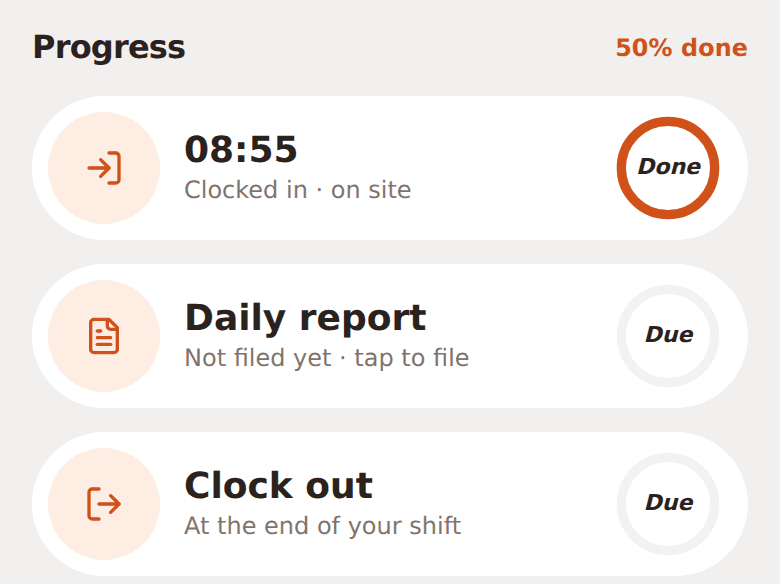
History shows your attendance day by day. You shows your account: your store, notifications, Change your password and Message support.
The week on the home screen and the calendar in History are coloured:
- A dot: you clocked in that day.
- Missed (red): a working day you did not clock in.
- Off (grey): a day off on your schedule.
- Leave (soft orange): approved leave.
Days off and leave
Your supervisor sets which days you work. Ask for leave in the app.
- 1Open You, then Ask for leave (it is also on the home screen, under the week).
- 2Pick the type (Annual, Sick, Casual or Other), your first and last day, write the reason, and tap Send request. You can ask for days up to 7 days back.
- 3Your request shows as Pending until your supervisor answers. You get a message when it is Approved or Rejected. You can cancel it while it is still pending.
On a day off the home screen says Day off today. Working that day anyway? Clock in as usual.
Report a problem
Something not working, or a complaint? Tell the office from inside Xtend.
- 1Go to You, then Message support.
- 2Say what happened, where and when, for example: “my clock-in keeps saying off site at Ikeja City Mall this morning”. One problem per message is easiest to sort out.
- 3The Xtend helper answers simple questions straight away. Anything it cannot sort out goes to the office, and their reply arrives as a notification. Open Message support again to read it or add more.
Urgent and on shift? Call your supervisor as well.
Common problems
It says my location is blocked
Open your phone’s Settings, then Apps (or Privacy on iPhone), then Xtend or Chrome, and allow Location. Set location to High accuracy, then go back to Xtend.
My location is not accurate enough
Turn location on with High accuracy, step outside or near a window for a moment, then tap Try again.
It says I am off site, but I am in my store
Try again near the entrance or a window. If it keeps happening, tell support through Message support so your store’s location can be checked.
Notifications are blocked
In the app: open your phone’s Settings, then Apps (or Notifications on iPhone), then Xtend, and turn Notifications on. In Chrome: tap the lock icon next to the web address, choose Notifications and set it to Allow. On iPhone without the app, add Xtend to your home screen first (Share, then “Add to Home Screen”) and open it from there.
The camera does not open
Allow the camera for Xtend in your phone’s settings, close other apps using the camera, and try again.
A banner says something is waiting to send
It sends by itself when you have signal. Keep working, and do not sign out until it has gone.
I forgot my password
Ask your supervisor or admin to reset it. You will choose a new one when you sign in.
Still stuck? Ask your supervisor or admin.